Convert PDF to text in your browser and download a plain TXT file. Text recognition is there when you need it, and off when you do not.
or drop, paste, or choose from cloud





Converting a PDF to text can mean two different jobs, and this converter lets you pick the one you need. Most PDFs already hold real characters, so the text only has to be read out. A scanned PDF holds pictures of pages instead, and those characters have to be recognized before anything can be extracted.
Text recognition is switched off by default, and that is deliberate. A PDF with a real text layer converts faster and more accurately without it, because the words are copied rather than worked out from an image. Turning recognition on when the file does not need it can only cost you accuracy.
You can tell which kind of file you have in a second. Open the PDF in any reader and drag across a line. If the words highlight, leave the OCR toggle off. If nothing highlights, switch it on and pick your document from the 124 source languages the recognition supports.
Extracting the text from a PDF turns a page you can only look at into words you can use. The converter writes everything it finds into a plain text file, so you can copy a quote, paste a paragraph into an email, or search the whole document with the find command in any editor.
That covers the jobs people usually have in mind: pulling references out of a paper, lifting figures out of a report, or moving the body of a long document into a writing tool. Nothing is retyped and nothing is transcribed by hand.
Several PDFs can go in at once. Each file is converted on its own and comes back as its own text file, with the same OCR setting and the same language applied to all of them. No account is needed and no email address is asked for.
The .txt file extension is used for plain text files. These files contain lines of text and can be opened in many text editors on different platforms and devices. The text does not contain any formatting.
That is the point of going from PDF to TXT rather than to a document format. The file opens on any computer and on any phone, needs no licence to read, and stays readable long after the program that produced the original has been replaced.
File extension: .txt, MIME type: text/plain
TXT on WikipediaA plain text file holds words, not pages. This is what survives the conversion and what does not.
| From the PDF | In the TXT file |
|---|---|
| Words and line breaks | Kept |
| Reading order | Kept, top to bottom |
| Bold, italics and fonts | Dropped |
| Images, logos and charts | Dropped |
| Tables | Kept as text, without the grid |
| Multi-column pages | Flowed into one column |
| Headers, footers and page numbers | Written out with the text |
A plain text file carries the words, not the layout. When the formatting matters as much as the words, the PDF to Word app is the better fit.
The words in a PDF are locked into a page layout. These are the cases where getting them out plainly saves the most work.
Papers, reports and books are shared as PDFs. Extract the text once and paste the passages you need into your notes instead of typing them out again.
A text file opens in any editor, so you can jump straight to a name, a date or an amount instead of reading page after page.
Translators, writing tools, screen readers and spreadsheets all take plain text. TXT is the format nearly every one of them accepts without a converter.
The PDFs people convert are often contracts, invoices or private correspondence. Here is exactly how yours are handled.
Every upload and download runs over an encrypted connection, so your files cannot be read in transit.
Stored on servers with full-disk encryption, and backups are encrypted too.
Text recognition is fully automated. Nobody reads your scans or documents, and nothing is shared with third parties.
Upload your PDF.
Switch OCR on if the PDF is a scan. Leave it off when the text in the file is already selectable.
Select your document language from the menu (optional).
Click "Start" and wait for the conversion to finish.
Yes. Converting a PDF to text is free and needs no account, and no email address is asked for. Upload the file, start the conversion and download the text. A plan only matters for very large files and longer batches.
Upload the PDF above, leave the OCR toggle off if the text in the file is already selectable, and start the conversion. The result is a plain text file you can download and open in any editor. Nothing has to be installed.
If the words highlight when you drag across them, you can copy them straight out of your PDF reader. If they do not, the page is an image and there is nothing to select. Converting the PDF to text solves that, because the output is a text file you can copy from freely.
That is exactly what this converter writes. TXT is the plain text format, so the file you download carries the extension .txt and the media type text/plain. It opens in Notepad, TextEdit, any code editor and any phone, with no extra software.
Because most PDFs do not need it. A PDF with a real text layer converts faster and more accurately when the words are copied out rather than recognized from an image. Switch OCR on only when the pages are scans or photographs, and the language picker appears with it.
Yes, with OCR switched on. The recognition reads the characters out of the page images and writes them into the text file. If most of what you convert is scans, the scanned PDF to text app is the more direct route to the same result.
It recognizes 124 source languages. Alongside the European ones the list covers Hindi, Bengali, Tamil, Urdu, Arabic, Thai, Japanese, Korean and Chinese in both simplified and traditional form. Pick the language your document is written in for the best result.
Yes. Add as many PDFs as you need and they are converted in one run, each returned as its own text file with the same OCR setting and the same language applied.
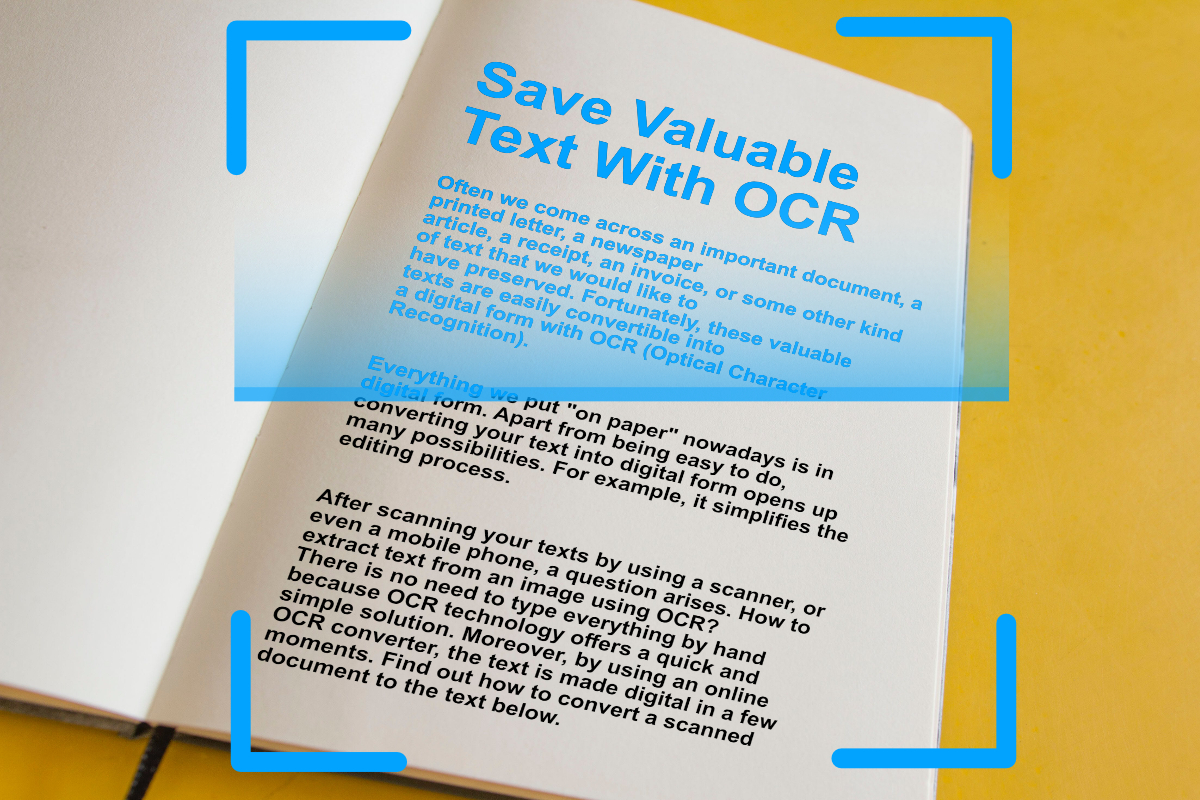
Digitize important text from scanned documents and images with OCR (Optical Character Recognition). Extract text from images easily, online.
Read articleEvery one of these runs in the browser. No install, no account, and the same text recognition behind it.