Convert scanned documents to searchable PDFs. Search the content of your scans, documents, and PDFs with keywords, numbers, names, and more.
or drop, paste, or choose from cloud





What the app does with your file, before you upload anything.
Digitizing your documents and running a digital office is not only good for the environment, it also saves a lot of time you usually spend searching through folders. However, many scans only contain images of the documents. These cannot be searched, except for the file name.
By making a scan searchable, an additional text layer is added to the scanned image, creating a so-called hybrid PDF. This text layer allows you to search for keywords, amounts and other numbers, names, or subjects inside the PDF.
A searchable PDF therefore looks exactly like the scan it came from. The pages, the stamps and the handwriting are all still in place. The difference sits underneath, where a layer of real characters waits for your reader, your computer and your document manager to read it.
File extension: .pdf, MIME type: application/pdf
PDF on WikipediaThis app takes a PDF and gives a PDF back. Nothing about the look of the document changes. The pages keep their size, the scans keep their marks, and a hidden layer of recognized text is written in behind them.
That is what separates it from the apps that pull text out of a file. Those hand you the words in a plain text file and leave the layout behind. This one leaves the layout alone, so you keep a document you can pass on, print or sign, and it searches like a text file as well.
The upload has to be a PDF. If you are holding a photo or an image file instead, the JPG to PDF and PNG to PDF apps build the PDF for you and run the same text recognition while they do it.
Text recognition reads a page against a model of the language it expects, so naming that language is the single most useful thing you can do for the result. The setting sits beside the uploader and it is the only choice the app asks you to make.
It takes more than one language at a time. A contract with an English cover page and a German annex reads best with both selected, and so does a scan that mixes a Latin script with Arabic, Cyrillic or Chinese.
The list holds 124 source languages, among them Arabic, Hindi, Thai, Vietnamese, Chinese in simplified and traditional form, and the Cyrillic forms of Azerbaijani, Serbian, and Uzbek. English is selected for you if you change nothing.
Text recognition does not read every page equally well. Here is what to expect from the file you are holding.
| The PDF you have | Can it be made searchable | What to do |
|---|---|---|
| A flat scan of printed pages | Yes | Upload it and pick the document language. This is the file the app is built for. |
| A page photographed with a phone | Usually | Shadows, angles and a curved spine all cost accuracy. Shoot flat and in even light where you can. |
| A faint copy, a fax or handwriting | Partly | Print and handwriting are not the same problem. Expect gaps and read the result before you rely on it. |
| A PDF whose text you can already select | Nothing to add | It is searchable already. Use PDF to Text if what you want is the words in a separate file. |
| A password-protected or damaged PDF | No | The app cannot open it. Remove the protection or repair the file first, then upload it again. |
| A JPG, PNG or other image file | Not here | JPG to PDF and PNG to PDF build the PDF and run the same recognition. |
Recognition quality follows scan quality. A crooked page, a low resolution or a shadow across the paper all cost accuracy, so it is worth reading the result before you file the document away.
A scan and a searchable PDF look the same on screen. These are the three things only one of them can do.
The find command in any PDF reader jumps straight to the word you typed. On a 90-page lease that is the difference between a search and an afternoon.
Desktop search and most cloud drives read the text layer inside a PDF. A searchable PDF turns up in results by what is written in it, not only by its file name.
Dragging your cursor across a scan does nothing, because there is nothing there to select. A searchable PDF lets you pick up a paragraph and paste it into a mail or a note.
The papers you scan and the documents you convert can be personal. Here is exactly how yours are handled.
Every upload and download runs over an encrypted connection, so your files cannot be read in transit.
Text recognition is fully automated. Nobody reads your scans or documents, and nothing is shared with third parties.
Only what a conversion needs is processed. Your files are never used to train AI models.
Upload the PDF you want to make searchable. Scanned pages and photographed pages both work.
Choose the document language from the list (optional).
Click "Start". After a short wait, your document will be ready.
A searchable PDF is a scan with a layer of real text behind it. The pages still look exactly like the paper they came from, but the words underneath can be searched, selected and copied. It is also called a hybrid PDF, because it holds the picture and the text in one file.
Upload the PDF above, pick the language of the document and press Start. Text recognition reads the pages, writes what it finds into a hidden layer and hands the PDF back. Several PDFs can go in at once, and each one comes back on its own.
Yes. Making a PDF searchable is free, needs no sign-up and costs no credits. A plan only matters for very large documents and long batches.
No. If you can drag your cursor across a line and the words highlight, the PDF already carries a text layer and is already searchable. Running it through again adds nothing. If what you want is the words in a separate file, use the PDF to Text app instead.
It reads 124 source languages, among them Arabic, Hindi, Thai, Vietnamese, Chinese in simplified and traditional form, and the Cyrillic forms of Azerbaijani, Serbian, and Uzbek. Select every language that appears in the document, because a mixed page reads best when all of them are listed.
Recognition quality follows scan quality. A crooked page, a low resolution, a shadow across the paper or a photo taken by hand all cost accuracy, and handwriting is harder again than print. Scan flat at 300 dpi where you can, and set the document language before you start.
Not with this app. It adds a text layer rather than removing one. Making a PDF non-searchable means flattening every page back into an image, which is the opposite job, and nothing here does that.
Uploads and downloads run over an encrypted connection, processing happens inside the European Union, and the whole pipeline is automated, so nobody reads your documents. Your files are never used to train AI models and you keep the rights to them.
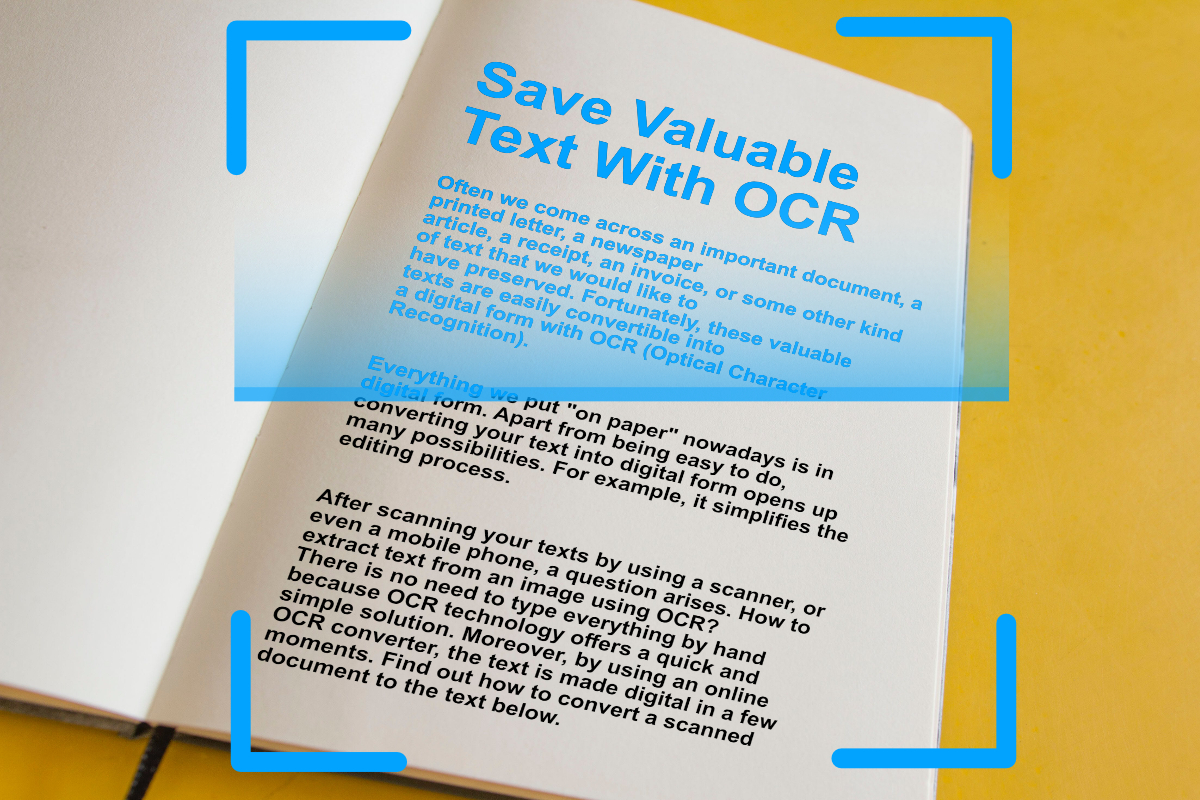
Digitize important text from scanned documents and images with OCR (Optical Character Recognition). Extract text from images easily, online.
Read articleEvery one of these runs in the browser. No install, no account, and the same text recognition behind it.